IPTV MAC Addresses What They Are, How to Find Them, and Setup
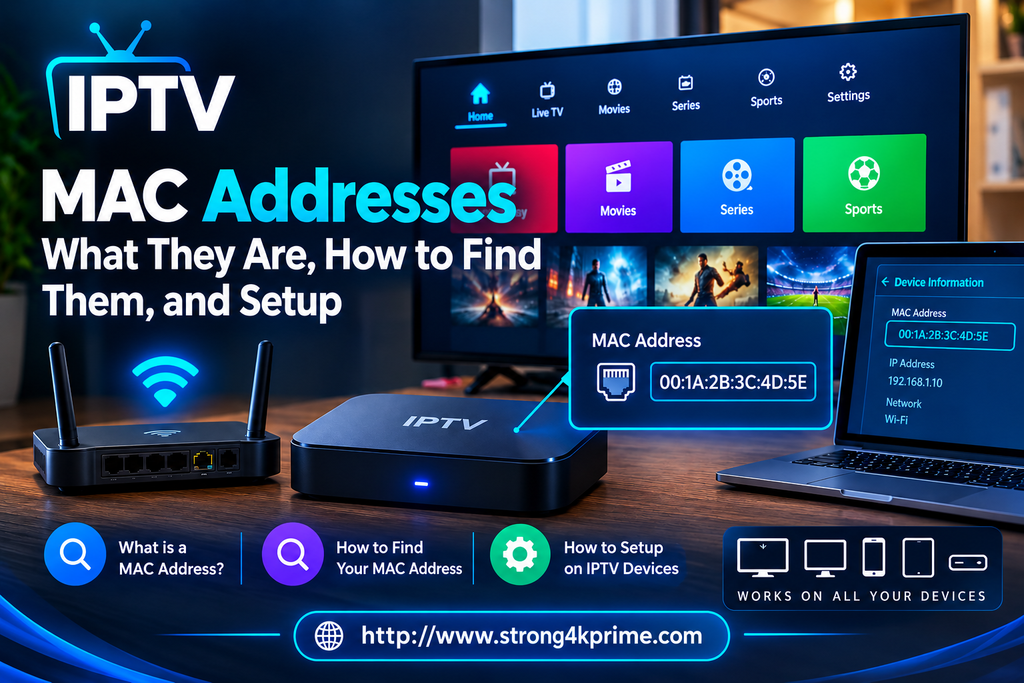
When delving into the world of Internet Protocol Television (IPTV), you’ll quickly encounter the term “IPTV MAC address” Whether you’re using a dedicated receiver with MAG functionality, setting up an application like Smart IPTV, or troubleshooting a connection issue, understanding what a MAC address is and how it works is essential It serves as an alternative or rather, another option for watching your subscription instead of entering your data as m3u links or using Xtreme codes.
This comprehensive, search engine optimized guide provides a detailed explanation of everything you need to know about IPTV MAC addresses, from finding them on various devices that support MAC address entry to securely configuring them with your chosen service provider.
What is an IPTV MAC Address?
A Media Access Control (MAC) address is a unique 12-character hardware identifier assigned to a network interface controller (such as an Ethernet card or Wi-Fi chip). It is typically formatted as six pairs of hexadecimal digits separated by colons (e.g., 00:1A:79:XX:XX:XX) Additionally, you cannot renew the subscription while it is currently active; you can only do so once the existing subscription has expired.
In the context of IPTV:
- Device Authentication: IPTV providers often use your device’s MAC address as a form of security clearance or “whitelisting” Instead of requiring a lengthy username and password, the provider maps your subscription directly to your hardware identifier.
- Portal Integration: Middleware solutions like Stalker Portals rely heavily on MAC addresses to link a user’s subscription package directly to set-top boxes (like MAG 254, MAG 322, etc.) or emulator apps (like STBEMU).
Why Do IPTV Providers Ask for Your MAC Address?
Many streaming beginners wonder if it is safe to share their MAC address with an IPTV provider. The short answer is yes.
Many beginners in the streaming world wonder whether it is safe to share their MAC address with an IPTV service provider The short answer is yes unlike an IP address which changes depending on the network used and can reveal geographical data a MAC address is a local identifier specific to the hardware (device) itself Providers request it for specific operational reasons:
- Stream Control: It ensures that your subscription is locked to a specific device, preventing unauthorized sharing or multi login abuse.
- Simplified User Experience: Once registered, your device can boot straight into your channel portal without requiring manual logins every time you turn on your TV.
Note: MAC based authorization is common for portal driven services If your provider uses Xtream Codes API or standard M3U playlists, a MAC address is usually unnecessary, as those rely on standard usernames, passwords, or token strings which are incorporated into various types of applications that support running Xtream codes and M3U links.
How to Find Your IPTV MAC Address by Device
Finding your hardware’s MAC address varies depending on the hardware or application you are using. Below are quick steps for the most common platforms:
1. MAG Set Top Boxes
- On the Device Sticker: Look at the physical sticker on the bottom or back of your MAG box; the MAC address is clearly printed there.
- On Screen: Power on the box and go to the inner settings or the system information screen during boot-up.
2. Smart TVs (Smart IPTV / SIPTV App)
Launch the Smart IPTV app on your Samsung, LG, or Android powered Smart TV The app’s main display screen or configuration menu will immediately show the application’s unique MAC address (often different from your TV’s native WiFi/Ethernet MAC) You will use this specific address to activate playlists on portals like siptv.eu.
3. Amazon Firestick / Android TV
- Navigate to Settings > My Fire TV (or Device Preferences) > About > Network.
- Locate the MAC address listed for your active connection (WiFi or Ethernet).
Step by Step Setting Up an IPTV Subscription Using a MAC Address
If your provider utilizes a Stalker Portal or MAC based authentication, follow these standard configuration steps:
1)-Locate and Copy Your MAC: Find the exact MAC address from your device or app settings (ensure you use the active interface, whether wireless or wired).
2)-Provide it to Your Provider: Send the 12 digit code to your IPTV provider so they can register and whitelist it on their server backend.
3)-Configure the Portal URL: Open your device’s IPTV settings (e.g., Servers > Portals on a MAG box), and enter the unique Portal URL provided by your service operator.
4)-Reboot: Restart your device or application The server will recognize your registered MAC address and load your channel bouquets automatically.
Common Mistakes to Avoid
- Mixing Up Wi-Fi and Ethernet MACs: Modern devices have separate hardware identifiers for wired and wireless connections. If you switch from an Ethernet cable to WiFi, your MAC address changes, which can instantly break your IPTV connection until updated with your provider.
- Typing Errors: Always copy and paste your MAC address when possible. Missing a single digit or colon will result in an authentication failure or a “Device Not Authorized” error message.
- Confusing IP and MAC Addresses: Your IP address changes dynamically depending on your local network router, whereas your MAC address is hardcoded permanently to the device.
Frequently Asked Questions
Can I change or “spoof” an IPTV MAC address?
Yes, advanced users may sometimes spoof MAC addresses on Android All devices such as phones, Android based smart TVs, TV boxes, Fire Sticks, or emulators to match an existing, authorized subscription However, this requires root access or specialized software, which is generally unnecessary for everyday streaming.
Why is my IPTV screen stuck on “Loading Portal”?
This usually means that your MAC address was entered incorrectly with the service provider, your subscription has expired, your device is experiencing a caching issue, or you are connected via a different network interface (e.g., WiFi instead of Ethernet) than the one registered with them Please review your network settings and verify the details with your service provider.
How to Find an IPTV MAC Address on Android TV
Android TV and Google TV devices can have different menu structures depending on the manufacturer.
A common approach is to open:
Settings → System → About
or:
Settings → Network & Internet
Then look for information such as:
- WiFi MAC address
- Ethernet MAC address
- Device information
- Network information
If your Android TV box uses Ethernet, check the Ethernet details if the IPTV provider specifically requires that interface.
MAC Address on MAG and Similar IPTV Devices
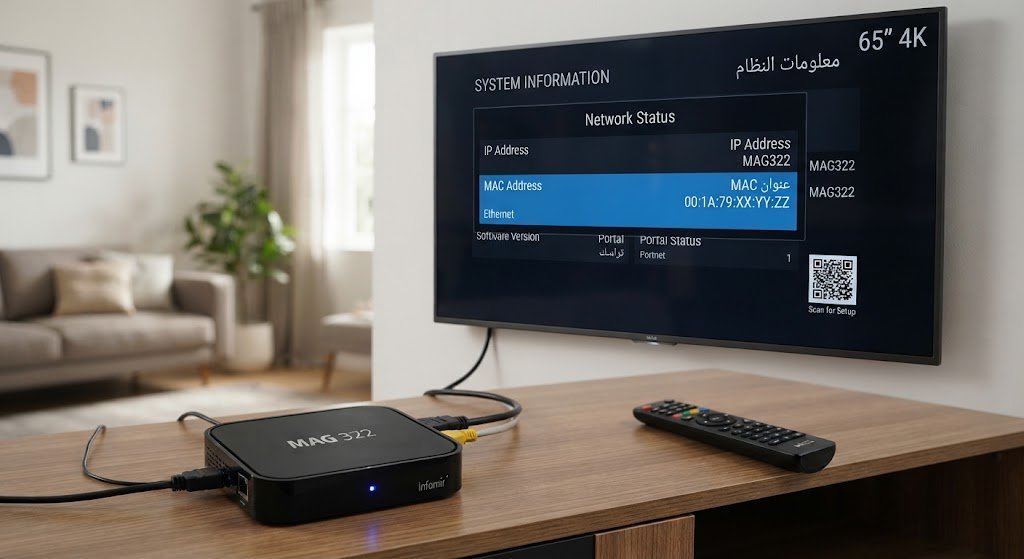
Some dedicated IPTV receivers utilize portal based systems, where the device’s MAC address plays a crucial role serving as the key identifier for your IPTV subscription Consequently, the MAC address can typically be found within the device’s system information or network settings.
A provider may request information such as:
- MAC address
- Portal URL
- Device model
- Subscription information
The exact setup depends on the service and hardware.
If your service provider gives you a portal address and asks you to register your device’s MAC address, use the official setup instructions they provide, rather than copying settings from an unrelated, unofficial service.
Can an IPTV MAC Address Change?
Yes, this can happen under certain circumstances This issue is significant because users often assume that a MAC address is fixed, permanent, and unchangeable however, on some devices, systems, and applications, it can be altered such as through features like “MAC address randomization,” particularly when connecting to high speed WiFi networks Network interfaces may also behave differently following hardware replacements, system changes, resets, or modifications to specific settings.
For instance, a device might use one specific address when connecting to a network, yet employ a different, randomized identifier under specific privacy settings This can lead to problems if an IPTV service relies exclusively on a specific device identifier.
MAC Randomization and IPTV
“MAC randomization” is a privacy feature designed to limit the ability of networks to track a device using a static hardware identifier While beneficial for privacy, this feature can cause compatibility issues with systems such as those used by certain hardware that rely on MAC addresses to register devices.
If an IPTV application or service suddenly stops recognizing your device after you have changed network or privacy settings, check whether the device is using a randomized MAC address Avoid disabling privacy features without due consideration instead, consult your IPTV service provider’s official requirements and review your device’s network settings.
IPTV MAC Address and WiFi vs Ethernet
Many devices have different MAC addresses for different network interfaces.
For example:
WiFi MAC:
00:11:22:33:44:55
Ethernet MAC:
66:77:XX:XX:XX:XX
If you switch from WiFi to Ethernet, the network interface being used by the device changes.
That can matter when an IPTV service associates access with a specific interface.
Therefore, if your IPTV configuration worked over WiFi but does not work after switching to Ethernet, check whether the service uses device or MAC based registration.
Does Every IPTV App Require a MAC Address?
No this is one of the most important things to understand when setting up an IPTV service, as different applications support different authentication methods meaning the way input data is authenticated varies from one application to another.
Some IPTV applications may support:
1/-M3U Playlist
An M3U playlist can contain IPTV stream information and may be provided as a URL.
3/-Xtream API
Some services provide:
- Server URL
- Username
- Password
These credentials can then be entered into a compatible IPTV player.
4/-Portal-Based Configuration
Some IPTV systems use:
- MAC address
- Portal URL
- Device registration
5/-Activation Code
Some applications use an activation code or an account based login mechanism therefore, one should not assume that every IPTV application requires a MAC address, as there are various options for entering the customer’s subscription details.
What Is a MAC Based IPTV Portal?
A MAC based IPTV portal is a system where a compatible device is identified using its MAC address and connects to a portal provided by the service.
The general process may look like this:
Compatible Device → Network → IPTV Portal → Authorized Account/Configuration → Available Content
The device transmits the necessary information to the portal for data analysis and authorization, and the service determines whether the device is permitted to operate this setup differs significantly from simply loading an M3U playlist into an IPTV player.
IPTV MAC Address and M3U Links
An M3U link and a MAC address are distinct entities an M3U playlist is essentially an organized list containing media streaming informationcompatible with applications such as VLC for PC, or Smarters Pro and TiviMate for FireStick and Android devices whereas a MAC address is used to identify the network interface of devices that support this addressing feature.
For example:
MAC Address
00:1A:XX:XX:XX:XX
M3U URL
These matters should not be confused if your IPTV service provider supplies you with an M3U link, you generally do not need to convert that link into a MAC address Conversely, if your service relies on MAC address activation, you can ask the provider to convert the MAC address into an M3U link though you would typically only request this conversion if you encounter significant issues running the subscription on your MAC address.
How to Set Up IPTV Using a MAC Address
The exact process depends on the IPTV service and compatible device A typical legitimate setup may involve the following steps:
Step 1: Identify Your Device
Determine the exact model of your:
- Smart TV
- IPTV receiver
- Android TV box
- Streaming device
- Other compatible hardware
Step 2: Locate the MAC Address
Open the network or device information menu and identify the appropriate MAC address.
Step 3: Obtain the Official IPTV Configuration
If your IPTV service supports MAC-based activation, obtain the required portal or activation information directly from the service.
Step 4: Register the Device
If registration is required, follow the provider’s instructions for associating the device with your account.
Step 5: Enter the Portal Information
If your compatible device requires a portal URL, enter the URL exactly as provided.
Step 6: Restart the Device
After activation, restarting the IPTV application or device can help it retrieve the updated configuration.
Step 7: Test the Connection
Check whether the service loads correctly and whether the available content matches your authorized subscription.
Common IPTV MAC Address Problems
MAC based IPTV configuration can fail for various reasons that are difficult to resolve via the client control panel therefore, understanding the most common issues can save a significant amount of time during troubleshooting.
1)-Incorrect MAC Address
Entering an incorrect address is one of the most common issues you must pay close attention to entering letters and numbers correctly so that your device recognizes and accepts the data For instance, the device may display both a WiFi MAC address and an Ethernet MAC address if your service provider has registered one while the device is using the other, the service may fail to recognize it.
Solution
Compare the registered MAC address with the address displayed by the active network interface.
2)-Typing Errors
MAC addresses contain letters and numbers, which makes transcription errors possible.
For example:
Correct:00:1A:XX:XX:XX:XX
An incorrectly entered character can prevent activation.
Solution
Copy the address carefully rather than typing it manually whenever possible.
3)-WiFi and Ethernet Switching
Switching between WiFi and Ethernet can cause the device to use another network interface.
Solution
Check which interface is currently active and verify that it matches the configuration expected by the IPTV service.
4)-MAC Randomization
Some devices use randomized WiFi MAC addresses.
Solution
Check the network privacy settings and the requirements of your IPTV service If the service requires a stable device identifier, follow its documented compatibility instructions.
5)-Device Reset
A factory reset can remove applications, settings, and all data stored on your device, as well as network configurations and other information while the physical network interface itself is not necessarily replaced, the way the device connects or identifies itself may change.
Solution
After resetting a device, review the IPTV application’s configuration and verify its network settings.
6)-Provider Side Activation Delay
Sometimes the device has been registered correctly, but the service has not yet updated its configuration.
Solution
Check the provider’s stated activation procedure and wait for the expected synchronization period before making unnecessary changes.
What Should You Do If IPTV Stops Working After Changing Devices?
Suppose you previously used an IPTV service on a specific TV and then transferred your subscription to another compatible device if the service relies on activation linked to a MAC address, simply copying the application settings may not suffice, as the new device will have a different MAC address Generally, the correct procedure is to follow the service’s official steps for transferring or registering a device, while avoiding attempts to manipulate device identifiers or bypass restrictions, If a legitimate service limits account usage to a specific device, you should contact your service provider and request the necessary adjustment to resolve the issue.
Is an IPTV MAC Address Sensitive Information?
While a MAC address is not a password, it should be treated as sensitive device information therefore, you should avoid publicly sharing your full MAC address unless there is a legitimate reason to do so Since it is private and sensitive data, you should prevent others from obtaining it to avoid its misuse in hacking or other illicit activities.
In particular, avoid sharing combinations of:
- MAC address
- IPTV account username
- IPTV password
- Portal URL
- Activation code
- Personal information
on public forums or social media.
If technical support needs your MAC address, provide it through the provider’s official support channels.
Can Someone Hack an IPTV Account With a MAC Address?
Generally a MAC address does not function as a password on its own however, if an IPTV service uses it as part of the authentication process to activate your subscription on your device, unnecessarily revealing your MAC address could raise avoidable security or privacy concerns the nature of which depends on the specific service’s design, Therefore, the safest course of action is to keep your device identifiers and IPTV service credentials confidential and avoid posting them publicly.
IPTV MAC Address Troubleshooting Checklist
If your IPTV service is not connecting, work through the following checklist.
Network
- Is the device connected to the internet?
- Does another application have internet access?
- Are you using WiFi or Ethernet?
- Has your router recently changed?
MAC Address
- Did you provide the correct MAC address?
- Are you using the correct network interface?
- Has MAC randomization been enabled?
- Did you switch from WiFi to Ethernet?
IPTV Configuration
- Is the portal URL correct?
- Is the subscription active?
- Was the device properly registered?
- Did you recently change devices?
- Does the application support the required authentication method?
Device
- Is the application updated?
- Have you restarted the application?
- Have you restarted the device?
- Did a recent system update change network settings?
Provider
If all settings appear correct yet the service still isn’t working, contact the official support team for your IPTV subscription they can determine whether the issue relates to account activation in the reseller’s dashboard, device registration, server availability, or any other problem specific to the service you subscribed to.
IPTV MAC Address on Different Devices
The concept is similar across devices, but the terminology and location of the setting can differ.
| Device Type | MAC Address Location |
|---|---|
| Smart TV | Network or device information |
| Android TV | Network/About settings |
| Google TV | Network or system information |
| IPTV receiver | System/network information |
| MAG-type device | Device/network information |
| Streaming box | Network settings |
| Router | Administration/network information |
The exact menu depends on the manufacturer and software version.
MAC Address vs Device ID
Another term you might encounter is Device ID an application can generate or receive a software based identifier that is independent of the hardware MAC address, A Device ID is not necessarily identical to a MAC address for instance, an IPTV application might identify the device using an internal ID, while the operating system simultaneously reports the WiFi MAC address separately, Therefore, if an IPTV service requests a “Device ID” do not automatically provide the MAC address unless the instructions explicitly state that the two are equivalent.
Why IPTV Users Should Understand Network Information
Familiarity with basic networking terminology can significantly simplify the process of troubleshooting IPTV services, When an IPTV application fails, the issue may not actually stem from the IPTV service itself, but rather from the application such as buffering problems or glitches in the application’s programming.
It could be caused by:
- Weak Wi-Fi
- DNS problems
- Router configuration
- Incorrect network credentials
- Device compatibility
- Application configuration
- Outdated software
- Incorrect portal information
- Account activation problems
Knowing the difference between a MAC address, IP address, DNS settings, and IPTV credentials helps you identify where the problem is occurring.
How to Improve IPTV Streaming Performance
A MAC address does not in itself, determine streaming quality performance depends more heavily on the network connection, the device, and the server, Consequently, numerous global servers compete on image quality as well as app performance and video quality to attract more customers, To ensure a better IPTV experience, please consider the following:
Use a Stable Internet Connection
A reliable connection is generally more important than simply having a high advertised download speed whenever possible, using an Ethernet cable provides a stable connection for stationary devices, ensuring high definition viewing without interruptions or freezing issues.
Improve Wi-Fi Conditions
If you use Wi-Fi:
- Place the router in a suitable location.
- Reduce unnecessary obstacles.
- Avoid excessive interference.
- Use an appropriate Wi-Fi band.
- Keep your router firmware updated.
Keep Your Device Updated
Operating-system and application updates can improve compatibility and resolve bugs.
Use a Compatible IPTV Player
Not all IPTV apps perform equally well across all devices therefore, choose a high quality, widely used and globally renowned player that supports both your device and the authentication format provided by your trusted service.
Frequently Asked Questions About IPTV MAC Address
1/-What does IPTV MAC address mean?
It usually refers to the MAC address of the network interface on a device being used with an IPTV service Some IPTV systems use this identifier for device registration or portal based activation.
2/-Is an IPTV MAC address different from a normal MAC address?
No An IPTV MAC address is normally just the MAC address of the device’s network interface IPTV services may use it for specific authentication or activation purposes.
3/-Does every IPTV subscription require a MAC address?
No Some services use M3U playlists, Xtream API credentials, usernames and passwords, activation codes, or other authentication systems.
4/-Can I use the same MAC address on multiple devices?
You should not copy or impersonate another device’s MAC address to bypass an IPTV service’s restrictions. If you need to move a legitimate subscription to another device, use the provider’s official transfer or registration process.
5/-Why does IPTV ask for my MAC address?
A service may use it to identify and register a compatible device, particularly with certain portal-based IPTV systems.
6/-What happens if I give the wrong MAC address?
The service may fail to recognize your device, resulting in activation or connection problems.
7/-Can my MAC address change?
It can appear differently under some circumstances, particularly with WiFi privacy features such as MAC randomization or when using a different network interface.
8/-Is my IP address the same as my MAC address?
No A MAC address identifies a network interface, while an IP address is used for network communication and can change depending on the network.
9/-Should I share my MAC address publicly?
It is better to keep it private and provide it only to legitimate support or service channels when necessary.
Conclusion
Understanding IPTV MAC address associated with an IPTV service is essential for anyone setting up an IPTV application that relies on device identification, The MAC address differs fundamentally from IP addresses, M3U playlists or standard IPTV login credentials it is essentially an identifier linked to the network interface, whereas the specific IPTV service determines how this identifier is utilized during activation and authentication, When setting up an IPTV service, users should first identify the specific requirements of their chosen application some IPTV players rely on MAC addresses for configuration, while others utilize M3U playlists, Xtream Codes credentials, or account based authentication, Using the correct information for the appropriate application helps users avoid many common, time consuming, and frustrating setup issues.